

Showing posts with label spring. Show all posts
Showing posts with label spring. Show all posts
3.20.2011


3.10.2010
Spring

IMG_6619, originally uploaded by B.B. Bellezza.
As you probably have noticed, it's flower week here at the B.B. Bellezza blog! So when I saw this scoutie girl post about spring, I thought it fit in perfectly!
The photo above I actually took last spring at the Silver Mines in Pequea, PA, when the flowers first started popping out. I haven't actually seen flowers appearing here yet, although some of my daffodils are starting to have little sprouts.
Spring holds a special place in my heart. It's a signal that we have survived another winter! I don't mean that so much literally, as I mean mentally. The snow has melted (or at least melting....), the sun is out and the thermometer is heading up. We can shed off our big winter coats and be free!
The photo above I actually took last spring at the Silver Mines in Pequea, PA, when the flowers first started popping out. I haven't actually seen flowers appearing here yet, although some of my daffodils are starting to have little sprouts.
Spring holds a special place in my heart. It's a signal that we have survived another winter! I don't mean that so much literally, as I mean mentally. The snow has melted (or at least melting....), the sun is out and the thermometer is heading up. We can shed off our big winter coats and be free!
3.01.2010
Upcoming!

Flower Week - Get Ready!
I am planning a fun springtime theme week for the blog for next week! Next week, starting Monday, March 8th, will be Flower Week!
I am so ready for Spring, and so tired of winter and snow! Even if you don't have a pile of snow in your front yard, or are actually reading this in a more tropical climate, who doesn't love flowers?!
The fun flower goodness will also include a giveaway starting on Monday!
For those of you in Lancaster, PA, I will be starting Flower Week in my booth at BUiLDiNG CHARACTER on March 5th, First Friday!
I am announcing here a full week ahead of time because I plan to have at least one post full of some handmade flowery products! So, if you make things that have flower patterns on them, make flowers themselves, or maybe you even help people with growing them, contact me this week and I will try to incorporate you into flower week! (Please send me an email to BBBellezza@comcast.net with a link of where to find your flower goodness online.)
4.13.2009
Spring Clean Your Etsy Shop Part 10

and now, the final part, Part X: Favorites
So, we've gone through our shop and fixed up our listings and our shops. Another part of our shops is our "Favorites." Although this may not have a big impact on our customers necessarily, I just feel better that everything is all cleaned up and in its place.
If you look at your favorites, are thing things that are now blank or say that the listing has expired? Now is the time to click on the little "x" and delete them.
I have kept some of my favorite items that have been sold because I want to be reminded of that item and find the shop and purchase it in the future.
I also went through my favorite sellers and deleted a few whose shops have closed.
Everyone has a different reason for saving favorites. Personally, I save my favorite items because I want to buy these things. But sometimes my favorite sellers are just shops that caught my attention or people I want to support.
Your Turn
-> Go to "Your Etsy" and click on "Favorites" on the Left side
Go through and delete all the empty listings or things that you no longer want to save in your favorites.
Click on the "sellers" tab and clean up your favorite sellers - see if people have deleted their shop or maybe renamed or moved their shop.
Here are my favorites now.
Feel free to post a comment!
Thanks for Spring Cleaning your Etsy Shop with me!
4.07.2009
Spring Clean Your Etsy Shop Part 9
 For the rest of the series:
and now, Part IX: Banner and Avatar
Your banner and avitar should represent your shop brand and vibe. Your avatar could showcase an item in your shop, yourself, or a really clever logo. Personally, I use a product because I think it will entice people to check out my shop. My banner is also my name along with some product photos. I am going to rework my banner, though, to show some really great photos I have and make sure I have a nice variety of what I offer in my shop.
YOUR TURN
-> To create a new banner, use your graphic design skills, hire one of the many people on Etsy to make one for you, or use the Etsy Banner Generator here: http://team.etsy.com/bannerdisplay.php
To load your banner, go to "Shop Setup" on the Left side and click on "Appearance." Use the browse tab to find your banner saved on the computer and upload your banner.
-> To change your avatar, click on "Public Profile" on the upper Left side.
Feel free to discuss, ask questions or comment here. :)
Spring
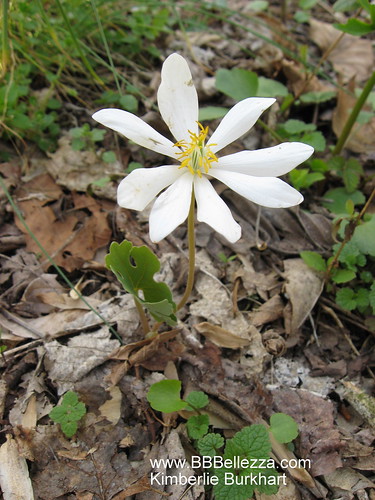
You wouldn't know it by the weather...but it is spring! and this little flower proves it!
We spent the gorgeous day Sunday at a beautiful park in Pequea, PA: Silver Mines Park. There are lots of photos if you click on the flower photo.
(Spring Clean Your Etsy Shop Series will continue later today....)
3.30.2009
Spring Clean Your Etsy Shop Part 8
 Previous Posts in the Series:
Part VIII: Photography
Today's "assignment" is going to focus on photography of our products. (The next part of the series will be posted in a week to give us all some time to work on this.)
One of the most - if not THE most - important aspects of selling online is photography. Your customers cannot pick up your product and look it over online like they can in person. Your photos need to be clear and accurate.
Photography can be tricky. I have a relatively inexpensive camera that I think does a good job in conjunction with photo editing. If you are taking photos of little things (like jewelry for example) you will want to have a light box. The good news is that a light box can be built from things you likely have around the house. Here's a great tutorial that I used.
As far as cameras go, I can give my suggestion for taking photos of small items, but I don't have a lot of experience with larger items. For small items like jewelry, the macro setting is essential. Also, you want to get as many megapixels as you can afford. That is the advice I was given and I have been very pleased with the improvements I have had since getting a new camera.
I use Picasso to do my photo-editing. It is easy to use and FREE! The color may be off when you took a photo, or you want to crop the photo....Picasso is great for that.
My Plan and Yours if you chose to accept it:
-> I am going to go through all of my listings and make a list of what items could use some better photos.
I am going to start with the worst photos and start re-shooting products and loading new photos.
I didn't start doing this yet, but plan to during the week! Feel free to post here if you would like some feedback!
(Also, if you didn't finish Part IV - Descriptions, you can also do this in conjunction with your photos!)
3.26.2009
Spring Clean Your Etsy Shop Part VII


Today we are going to work on:
Payment Methods
and
Web Analytics
This will be simple and painless! So, decide what payment methods you are going to accept. Most likely you have already made this decision in part Part I when we did our Policies Page, so just make sure your policies match your "Payment Methods"
Web Analytics are sort of confusing for me, but I did get mine set up. So, if you haven't and you want to see your stats and such, set them up. LOL!
Your Turn
-> Go to Your Etsy and click on "Payment Methods" on the Left side under "Shop Setup"
Make sure that what you have clicked is consistent with your policies.
If you pick "other," make sure you describe what "other" is in your policies.
Make sure you have the correct paypal address and mailing address
Click "save" at the bottom of the page.
->To set up Web Analytics, go to "Your Etsy" and click on "Web Analytics" on the Left side under "Shop Setup" and follow the directions.
As always, feel free to comment, ask questions or discuss here.
3.25.2009
Spring Clean Your Etsy Shop Part VI


Spring Clean Your Etsy Shop Part VI
Today we are going to work on:
Shop Title
Shop Announcement
Alchemy Status and Announcement
and Message to Buyers
Don't worry, they are all relatively simple and they are all on the same page, so let's do them all!
Shop Title:
This appears on your shop page just under your banner. It's a great place for your tagline for your shop, or a little description of your shop. You only get a few words, so chose them carefully. I believe that I have read that Google and other search engines pick up the title, so use some keywords. I changed mine to add "coasters" since that is a new product I have added to my shop.
Shop Announcement:
There are differing opinions on this. Some people give a lot of information, some people do not use the shop announcement at all.
I am opting for somewhere in between the 2 extremes. I want my items to show up on the page when someone clicks on it, so I don't want my announcement to be too long.
->by the way! remember to save at the bottom of the page! I keep going to my shop page to see what it looks like when I change something, so make sure you save before you do that.<-
Alchemy Status and Announcement
Alchemy is Etsy's word for custom orders. If you are willing to have people contact you about custom orders, click "allow private requests", if not click "do not allow private requests."
If you do allow private requests, make sure to fill out your announcement, too. I am not taking custom requests at this time.
Message to Buyers
This is the message that the buyers recieve on their email when they make a purchase from you. I just did a read through and made sure to get rid of any akward statements and typos.
I added some instructions for if they need something resized or if they have a coupon code, too.
Your Turn
->
Go to Your Etsy and click on "Appearance" on the Left side under "Shop Set up"This will open up the option to edit all of the features I mentioned above, as well as a banner (which we are not doing today)
Make any revisions and make sure to click on "save" at the bottom of the page.
As always, feel free to comment with any questions or problems you may encounter!
3.23.2009
Spring Clean Your Etsy Shop Part V


For the first 4 parts:
Today, we are going to clean up our Shipping Profiles. I had a lot of different shipping profiles because I used to also make and sell Bath & Body Products, which were all different weights. But now I just sell basically one product and have made my shipping a lot easier because I just charge one flat rate for all my shipping.
Therefore, I decided to get rid of some of my old profiles. (Note, this is definitely just for your own satisfaction and ease, it does not change your shop necessarily, unless you are changing your shipping policies.)
I also got rid of some repeated profiles I had in there.
Easy Peasy. (And if you are like me, you are still working on Part IV - Descriptions!)
Your Turn
-> Go to Your Etsy. On the Left side Find "Shop Setup" and click on "Shipping Options."
To change any profile, pick it from the drop down menu and click "Go". Make any changes and click "Save" OR to get rid of the profile click on "delete this profile" at the bottom of the page.
You can also "Create a New Profile"
If you need to change your listings' shipping, you can use the "Batch apply profiles to items" and then you can change them.
Please feel free to comment here with any questions!
3.20.2009
Spring Clean Your Etsy Shop Part IV

In case you missed them, here's the first 3 parts to this series:
Now on to Part IV.
I have been really struggling with exactly how much information to include in each listing, how professional or fun to make it, etc. I have decided to just be myself, but make sure all the pertinent details are included about each listing. Since I use many upcycled objects in my jewelry, I thought it would be good to tell the story behind them when I can.
I got a lot of useful information from this Etsy article about telling your story.
I also put a link from my listing to my Policies Page. My policies include a lot of information, so I figured I would use my words more wisely in each listing and just link to the rest of the information. (And since Part I was about updating our Policies Page, it is all ready to go!)
Changing and updating all your listings will be time consuming, depending upon how many listings you have, of course! If you sell and list a lot of stuff, you could probably just start with new listings or when you relist stuff.
Your Turn!
-> To edit your listings, just go your "Your Etsy" and click on the "edit" link that is to the Right of each listing.
Then you can click on the pencil symbol by "description" and then do your new description.
After editing your description, click on "Last" at the bottom of the page and make sure you click "Finish" on the next page. (If you don't, your listing will mysteriously disappear to the "inactive listings" section.)
Please feel free to comment and let me know your questions, troubles, or just to say "hi!" If you want to post a link to a new description that you would like feedback on, post a link to it.
Here's an example of a new description for me: Antique Adding Machine Button Ring
and here's an example of an old description that I will be changing
Much better, right? Please let me know what you think, or if you see any typos I missed!
Thank you!
3.18.2009
Spring Clean Your Etsy Shop Part II


Part II of Spring Clean Your Etsy Shop, we will get our categories in order!
(If you missed Part I, we spruced up our policy pages.)
The categories in your shop make shopping easier for your customers. This is especially true if you have a lot of products, or many different kinds of products.
I have seen a lot of categories that go from the very plain the the creative. People have different opinions about what they like. I actually like both ways. However, if I am in a hurry and trying to find something quickly, I prefer simple.
Because of Etsy's streamlined look, everyone has the same font in their store. There are ways to (kind of) get around that. You can put a s p a c e in between each letter, or you can CAPITALIZE your letters (or lowercase them, for that matter.)
I have decided to go back to very simple and straight forward with no spaces or capitalization at all. Also, I will be adding new inventory shortly (rings!) so I made a new category. I also decided to do away with the "hardWire Jewelry" category and incorporate my hardWire Jewelry Line into the more simple categories of bracelets, necklaces and earrings. I might consider changing it back once I get the inventory back up in my store. (I also changed "other" into "miscellaneous." I am not sure that it really makes a difference!)
Your turn! Check out your categories and see if they need any tweeking. Also, you can do use the "batch sort" to make sure everything is in the correct category.
-> to edit your categories, go to your shop page under "Shop Setup" on the left side.
click on "Sections"
From there you can add, rename, delete or reorder your categories.
Have fun! Come back and leave the link to your store if you would like to ask for opinions on what you've done.
Here's my shop: http://bbbellezza.etsy.com/
3.17.2009
Spring Clean Your Etsy Shop


This time of year always makes me feel like cleaning and organizing. I see it as a time to start fresh. Plus, my favorite seasons are just around the corner! (Spring and Summer)
I thought it was a perfect time to freshen up my Etsy Shop as well. I thought I would share what I am doing...maybe we can do some "Spring Cleaning" together?
I decided that this I will be breaking it into really tiny pieces. Probably parts that only take a few moments of a day.
Day 1: Policies
First thing I am working on is my policies. I have a lot of policies and they are akward and bulky.
Maybe you didn't fill in your policies yet...now's the time! :)
My plan is to make my policies as simple as possible while still having all the information that I think is important.
As a buyer, sometimes I take comfort in knowing exactly what will happen. Other times, I don't have the time or patience to read all the policies. Therefore, I am trying to make my policies "skimmable" so that my customers can skim over the information and glean what exactly it is they are looking for.
I invite you all to take a few minutes to look over your policies and create them, if necessary, or "freshen them up" if necessary and come back and discuss it if you would like. We can even check each others' policies and give some help and advise...and check for typos, etc. I would suggest linking directly to your policies page if you would like some feedback.
Here is my policy page. Any comments or impressions - or especially if there are typos I missed - woul be greatly appreciated!
Note, I am especially interested to know if they are too long and bulky. I am having a difficult time shortening them because I feel they are all important.
Also, I suggest cleaning up your policies one day, taking some time (perhaps overnight) and re-reading them the next day.
Subscribe to:
Posts (Atom)